Content Dev:CC Clothing Thumbnails
- Main article: CC Clothing Setup Guidelines.
Setting the Garment Thumbnail
This page explains the standard workflow for saving garment assets and configuring thumbnails in Character Creator 5.2 (CC5.2). To ensure visual consistency and recognizability when managing and applying assets, developers should understand thumbnail capture, scene object visibility settings, background image replacement, and the thumbnail update settings in the Content Manager.
For detailed operations, please refer to the User Manual.
Thumbnail Display Locations
After you complete the production workflow and save the garment asset, the system automatically generates a preview thumbnail. This thumbnail appears in two locations:
- Content Manager: Displays the thumbnail for asset browsing and retrieval.
- Cloth Layer Settings: Shows the thumbnail in the Thumbnails column when a user applies the garment to a character, providing a reference for layer order management and garment identification.

Preparing the Capture View
To ensure the saved thumbnail focuses on the target garment asset, adjust scene object visibility and camera framing before saving:
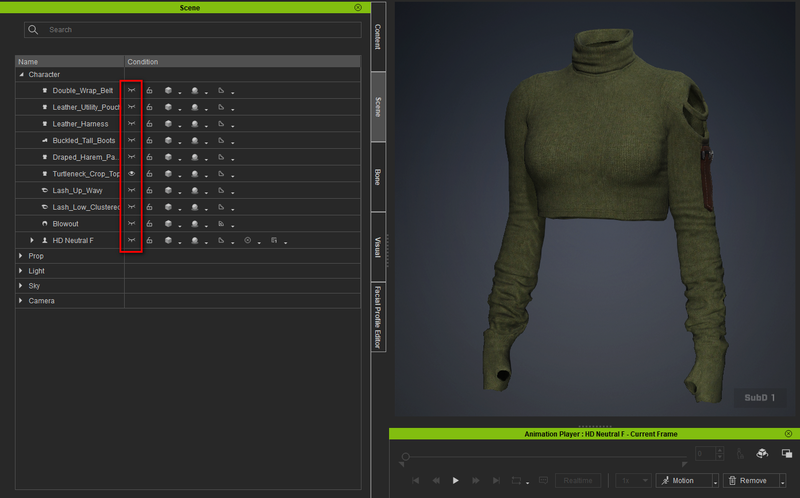
- Open the Scene Manager panel.
- Use the Condition (Visibility / Eye icon) control to set the target asset, such as a specific garment component, to Visible.
- Temporarily set all unrelated objects, including the character’s body and other garments or accessories, to Hidden.
- Adjust the camera angle and focal length in the 3D Viewport to ensure the entire asset is clearly visible and centered in the frame.

Changing the Background Image
If you wish to customize the thumbnail background to match your project’s visual specifications rather than use the default dark gray background, replace the 2D background image:
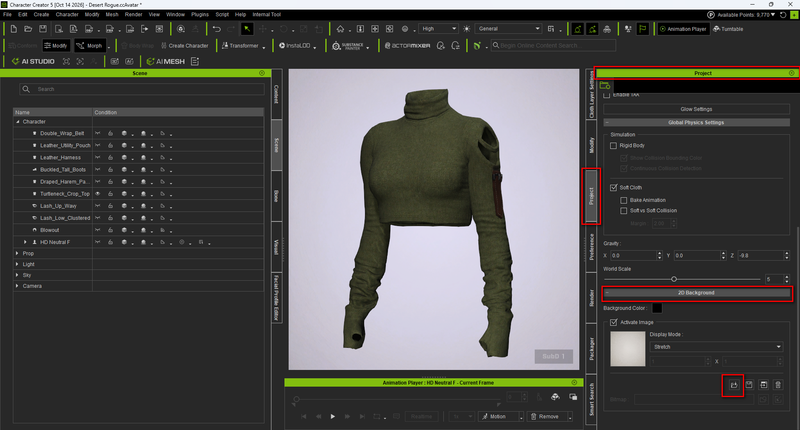
- Navigate to Project > 2D Background in the main menu or right-side panel.
- Check Activate Image.
- Click the Load icon to import the background image file in the specified format.

Updating Existing Thumbnails
The Keep Original Thumbnails option controls whether an existing thumbnail is preserved when an asset is overwritten or saved again.
If the thumbnail in the Content Manager does not update as expected, check the following setting:
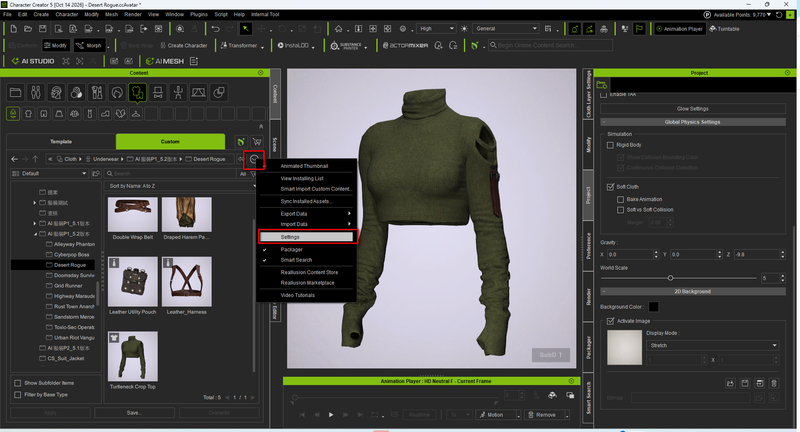
- Click Menu > Settings in the upper-right corner of the Content Manager panel.
- Uncheck Keep Original Thumbnails.
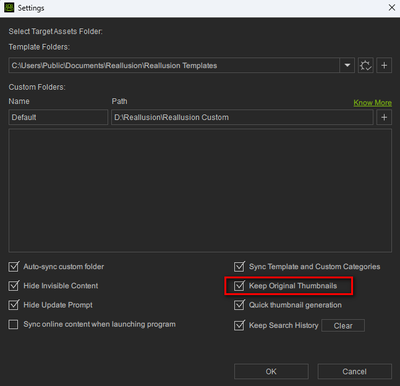


Once this option is unchecked, subsequent save operations recapture and update the thumbnail based on the current camera angle and framing in the 3D Viewport. Before saving again, check that the scene object visibility, background, and camera framing present the garment as intended.
