Content Dev:CC Clothing Type and Collision Settings
- Main article: CC Clothing Setup Guidelines.
Assigning Cloth Type and Configuring Collision
After completing skin weight transfer for the garment, assign the appropriate Cloth Type based on the garment’s cut, component category, and multi-layer outfitting requirements. Proper Cloth Type configuration helps ensure accurate garment layering, collision calculations, and automatic layer sorting.
Before saving the garment asset, configure its default Collision state according to its intended use and performance requirements.
Overview of Cloth Types
Character Creator 5.2 provides eight standard Cloth Types. Assign the appropriate type according to the nature of each garment component.
For detailed type attributes and parameter benchmarks, please refer to the User Manual: Clothing Layer Category Mapping for CC 5.1 and Earlier Users.

Assigning Cloth Type
You can assign the target garment’s Cloth Type through either the Cloth Layer Settings panel or the Modify menu.
For detailed instructions, please refer to the User Manual.
Using the Cloth Layer Settings Panel
- Open the Cloth Layer Settings panel.
- Locate the target garment component and click its reassign icon (Settings) in the Settings column on the right. This opens the Reassign Cloth Type panel.
- Assign the appropriate Cloth Type.
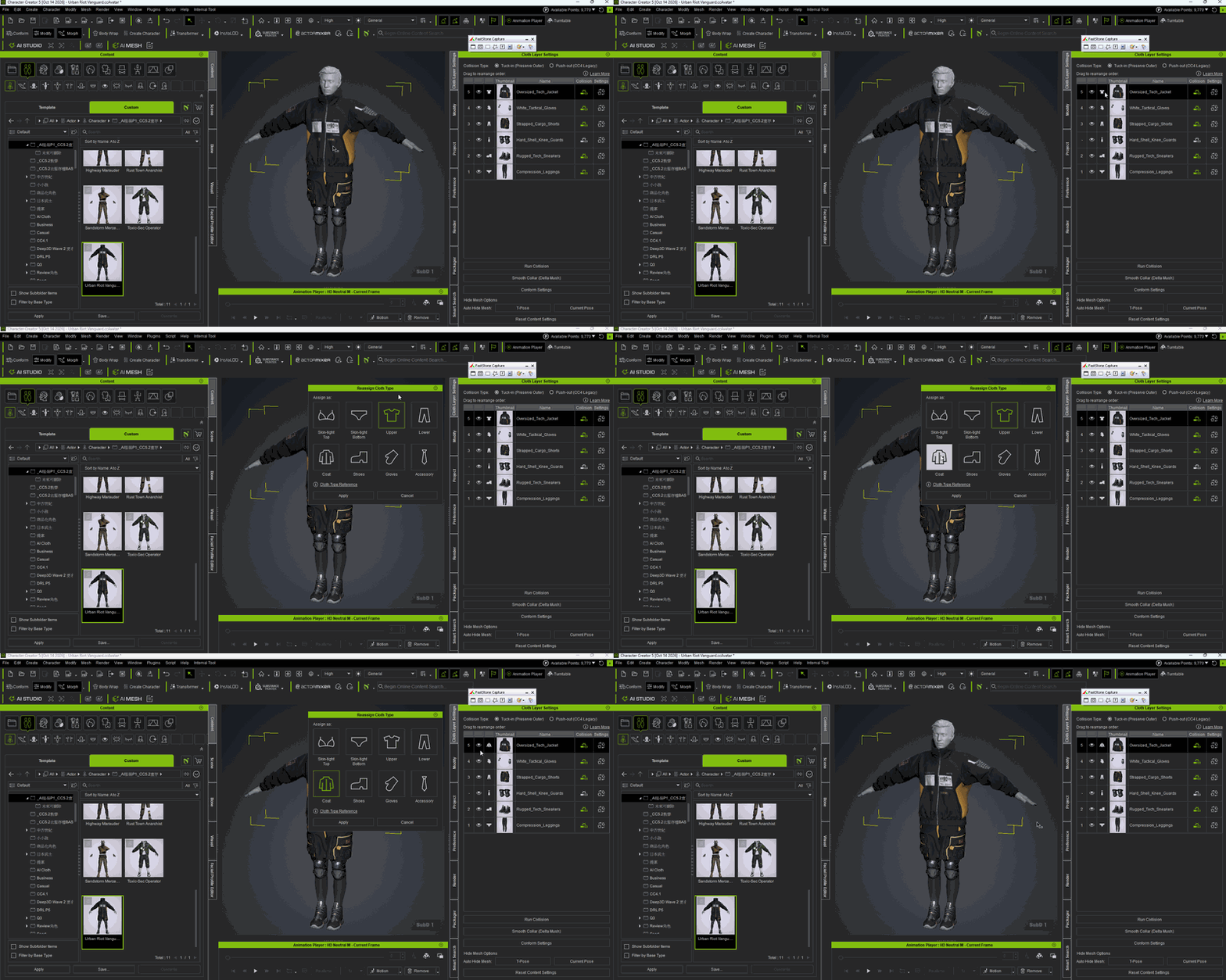

The following image shows the Settings column in the Cloth Layer Settings panel.

Using the Modify Menu
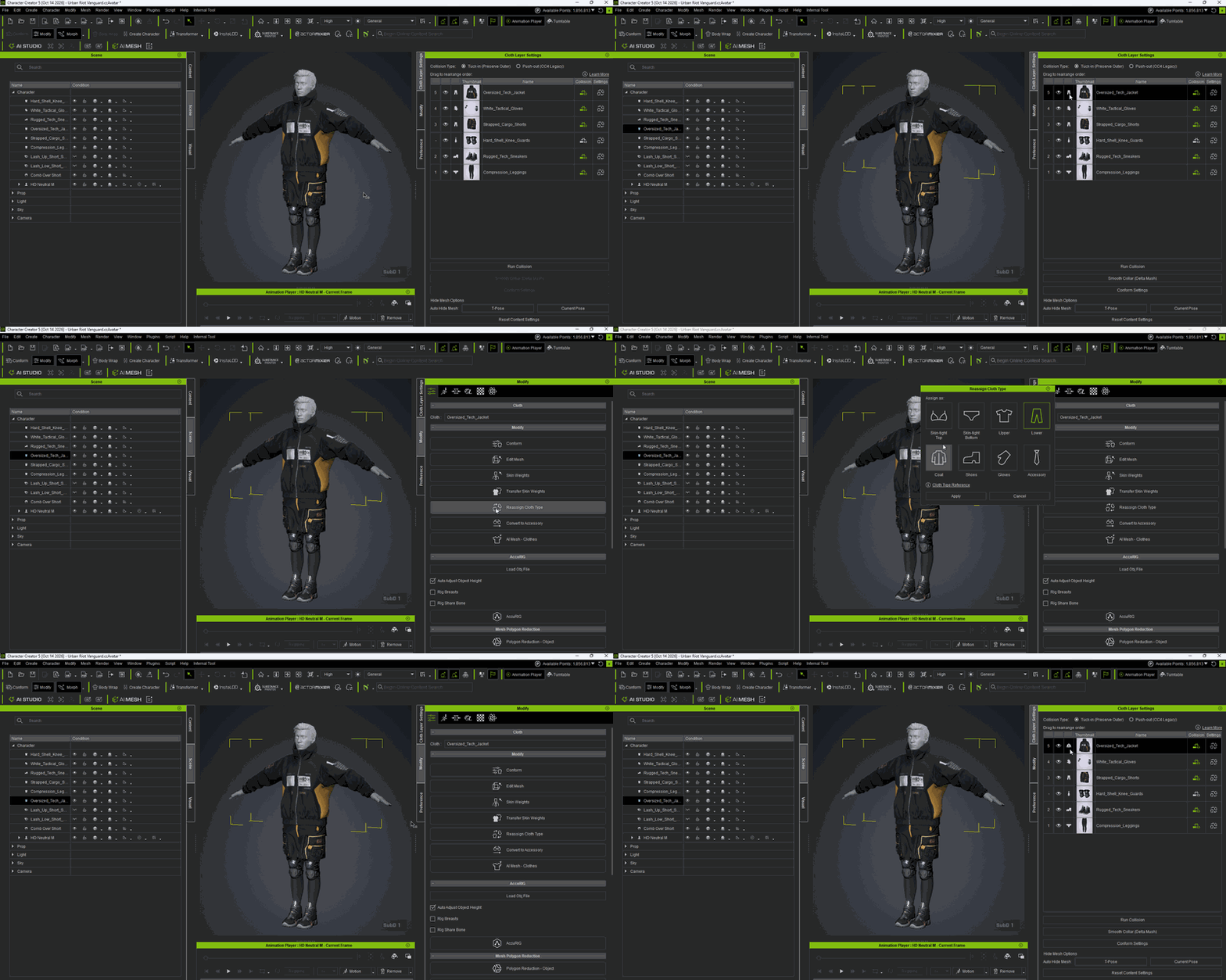
You can also open the Reassign Cloth Type panel from the Modify menu:
- Select the target garment in the 3D Viewport or the Scene Manager panel.
- Choose Modify > Reassign Cloth Type.
- Assign the appropriate Cloth Type in the Reassign Cloth Type panel.

Configuring the Default Collision State
Before saving a garment asset, developers must configure its default Collision state based on the asset’s intended use and performance requirements. This setting determines whether the garment participates in the system’s Run Collision calculation when a user applies the asset.
For detailed instructions, please refer to the User Manual.
- Evaluate the asset’s requirements: Determine whether the garment layer should participate in collision calculations by default.
- Open the Cloth Layer Settings panel on the right.
- Click the Collision icon next to the target garment to toggle its state:
- Enabled (Green): The garment participates in collision calculations by default when applied.
- Disabled (Gray): The garment does not participate in collision calculations by default when applied.
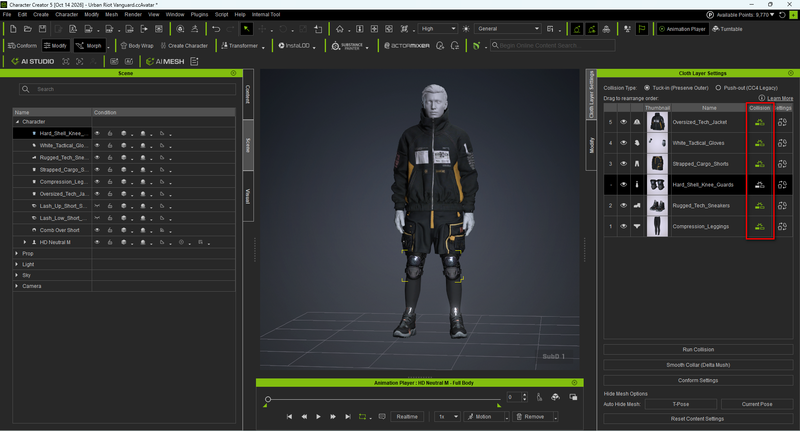
- Confirm that the Collision settings for all layers are correct. Before saving the final commercial asset, follow the instructions in Content Default Settings Before Saving. Save the asset to retain its default Collision state.

