Content Dev:CC Clothing Default Settings
- Main article: CC Clothing Setup Guidelines.
Content Default Settings Before Saving
Before saving the final commercial garment or accessory, developers must complete two default data settings: Save as Default and Set to Default Mesh. These settings record the adjusted shape and mesh as reference data for subsequent garment corrections, helping preserve the intended silhouette and layering behavior when customers apply the assets.
Why These Settings Are Required
Starting from Character Creator 5.0, the Cloth Auto Correction When Applying option under Preference > Content is enabled by default. When enabled, applying a garment automatically recalculates its shape.

Character Creator 5.2 also introduces Tuck-in (Preserve Outer) for garment layering and tucking.

These features require appropriate reference data to work with the garment’s adjusted shape and mesh. The two default settings serve different purposes:
| Setting | Reference Data | Related Features |
|---|---|---|
| Save as Default | Records the garment or accessory’s adjusted shape as it is currently worn on the default character. | Conform operations, including Tuck-in (Preserve Outer) and Push-Out (CC4 Legacy). |
| Set to Default Mesh | Records the current mesh state as the underlying reference data. | Cloth Auto Correction When Applying and Smooth Collar (Delta Mush). |
Complete both settings before saving the final commercial asset files (.ccCloth / .ccAcc).
Before You Begin
Complete the following production processes for all clothing and accessories:
- Garment/accessory mesh preparation and refitting
- Transfer Skin Weight and skin weight refinement
- Cloth Type assignment
- Collision toggle configuration
- Hide Body Mesh Tool setup
Check the complete outfit and make any final adjustments to its shape and fit. Once the intended appearance has been established, perform the following two operations in sequence before saving the final asset.
For the preference setting used during refitting, see Preparing for Garment Production.
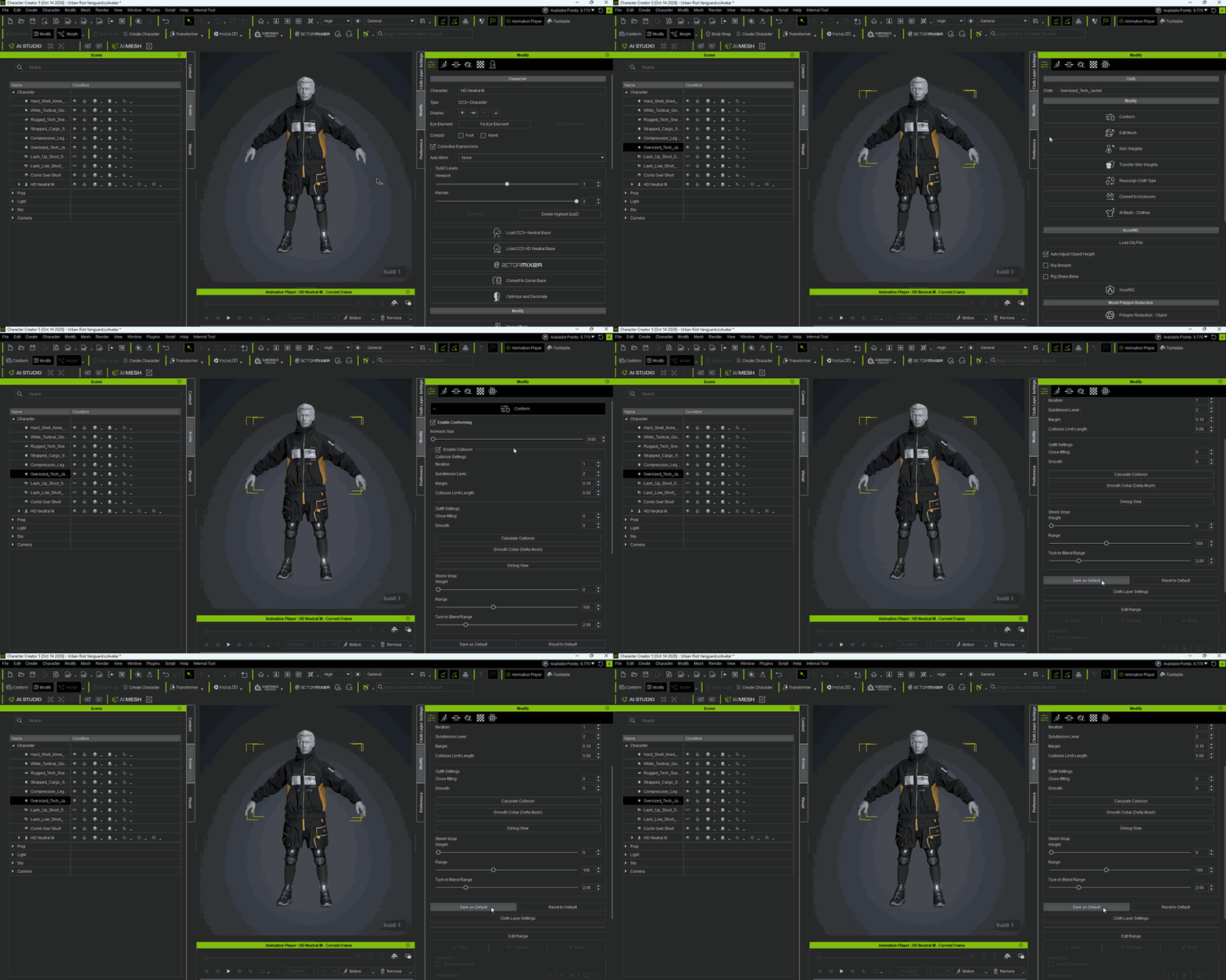
Save as Default (Conform Shape)
Purpose: Record the adjusted shape of the garment or accessory as it is currently worn on the default character.
When the system performs Conform calculations, such as Tuck-in (Preserve Outer) or Push-Out (CC4 Legacy), it uses this default shape data as the reference baseline. Recording the intended shape helps preserve the garment’s pattern and silhouette during subsequent Conform operations.
- Select the target garment or accessory.
- In the Modify panel on the right, expand the Conform section.
- Click Save as Default.

Set to Default Mesh
Purpose: Record the current mesh state as the underlying reference data.
This default mesh serves as the required baseline for Cloth Auto Correction When Applying and Smooth Collar (Delta Mush). It provides the mesh reference for these operations, while Save as Default provides the shape reference for Conform calculations.
- Select the target garment or accessory.
- From the main menu, choose Modify > Set to Default Mesh.
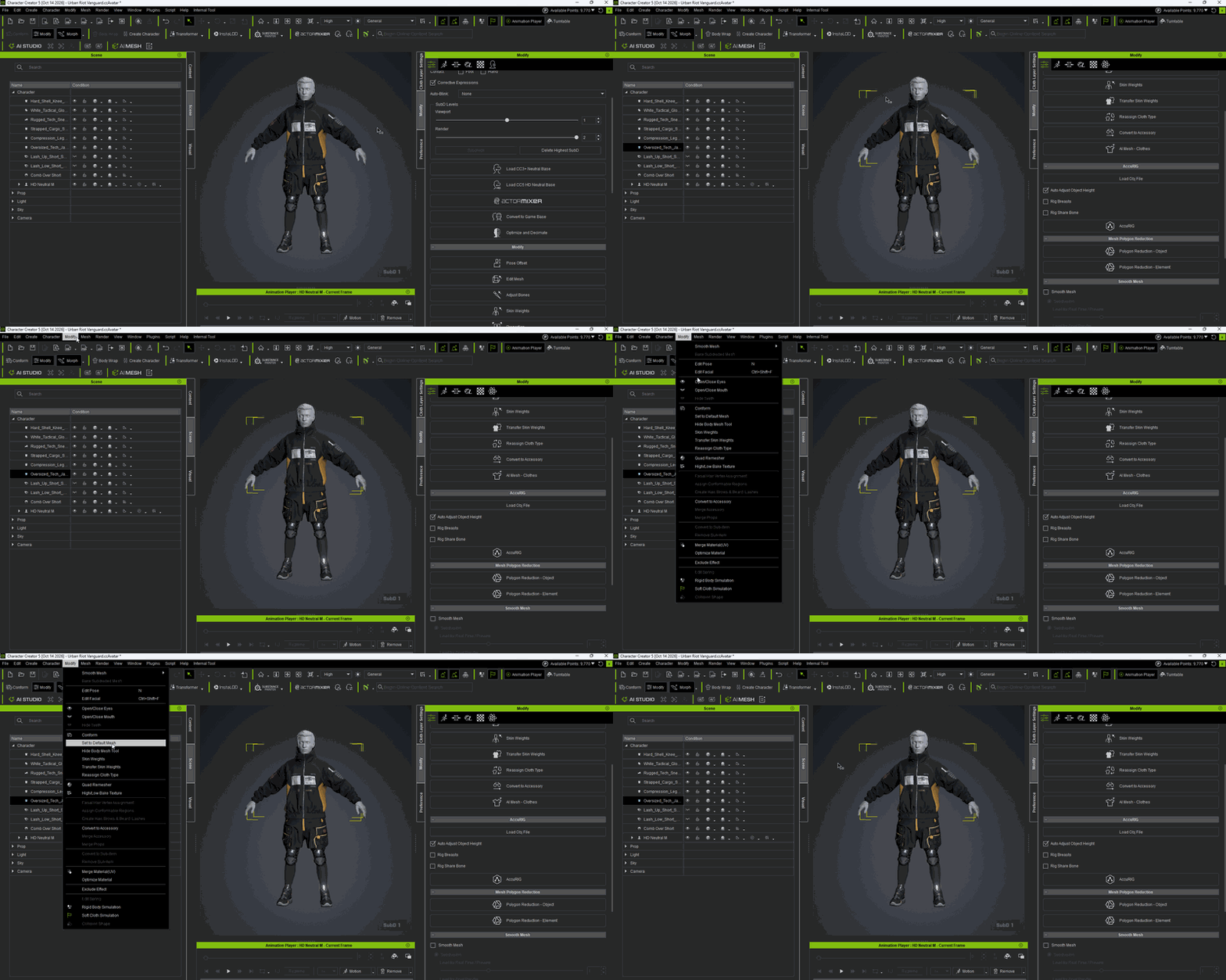

After completing both operations, save the final commercial asset file.
Consequences of Skipping the Default Settings
Warning: If these settings are omitted before saving, the system may lack the correct reference baselines for subsequent corrections.
When Conform, Cloth Auto Correction When Applying, or Smooth Collar is used, calculations may rely on the original raw OBJ data from the initial import instead of the adjusted shape or mesh.
This can cause:
- Severe or unintended deformation.
- Mesh penetration, including clipping and poke-throughs.
- Changes to the garment’s intended pattern or silhouette.
- Unexpected visual results when customers apply the asset.
Complete both Save as Default and Set to Default Mesh before saving to provide the intended reference data.
