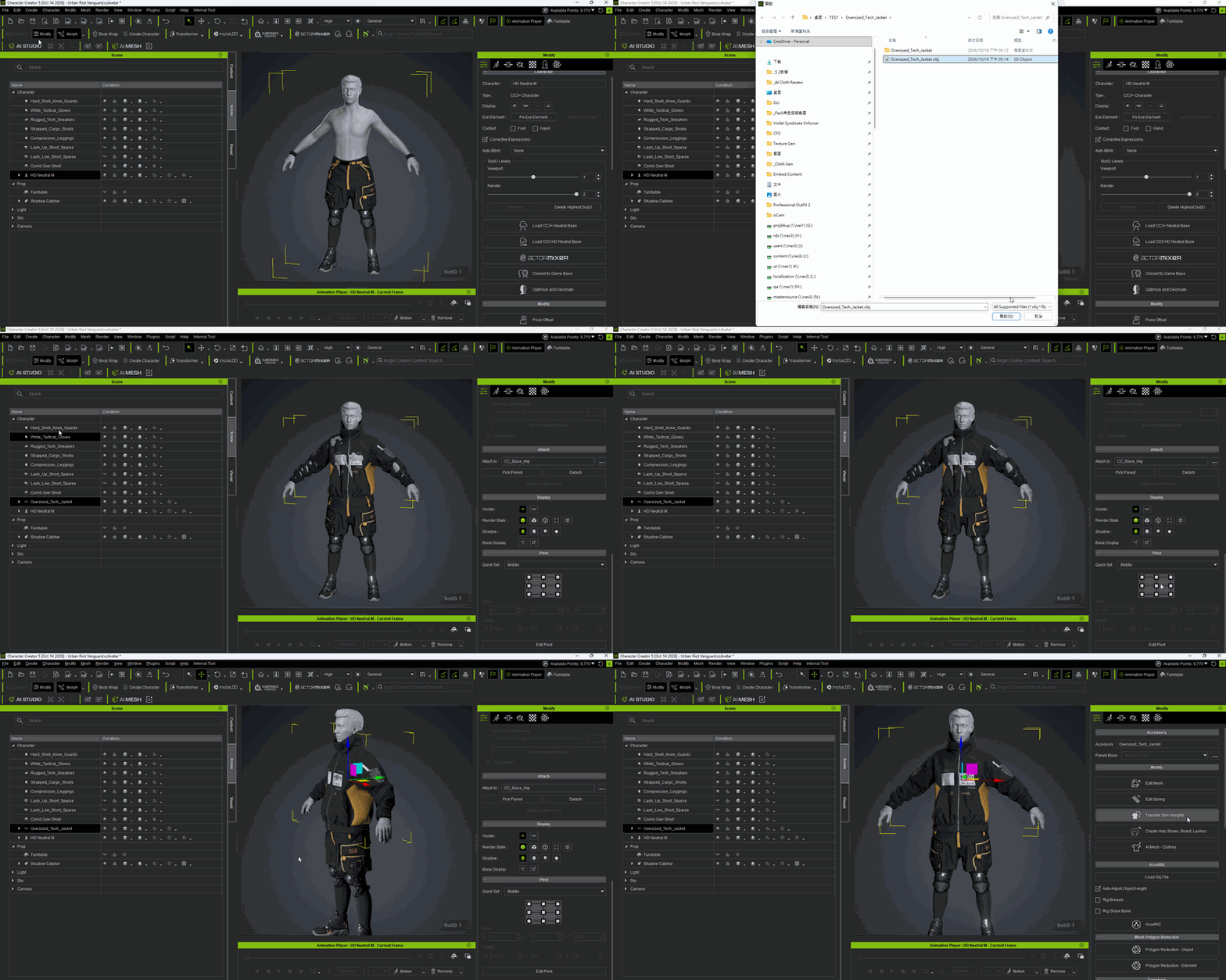
Content Dev:CC Clothing Model Import
- Main article: CC Clothing Setup Guidelines.
Importing Garment and Accessory Models
After completing garment or accessory models in external 3D software, import the OBJ files into Character Creator (CC). CC provides two primary import methods. The method you choose determines whether the object is initially categorized as a Prop or an Accessory and how Transfer Skin Weight becomes available.
Method 1: Importing as a Prop
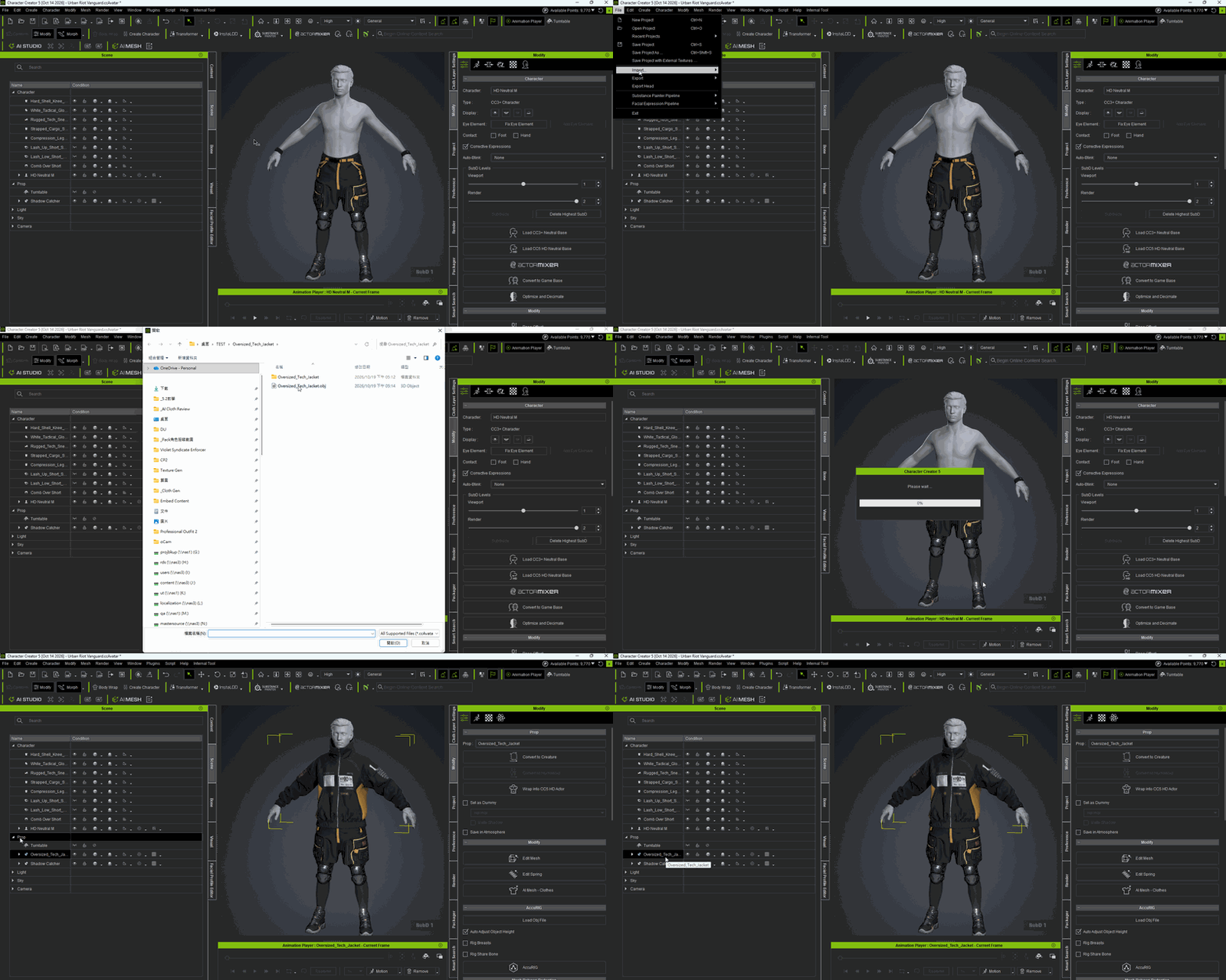
Import the OBJ file using File > Import or Create > Prop. The model is initially categorized as a Prop and must be attached to the character before Transfer Skin Weight becomes available.
Importing the OBJ File
- Choose File > Import or Create > Prop from the menu bar.
- Select the OBJ file to import. The model appears as a Prop in the Scene Manager.

Attaching the Prop to the Character
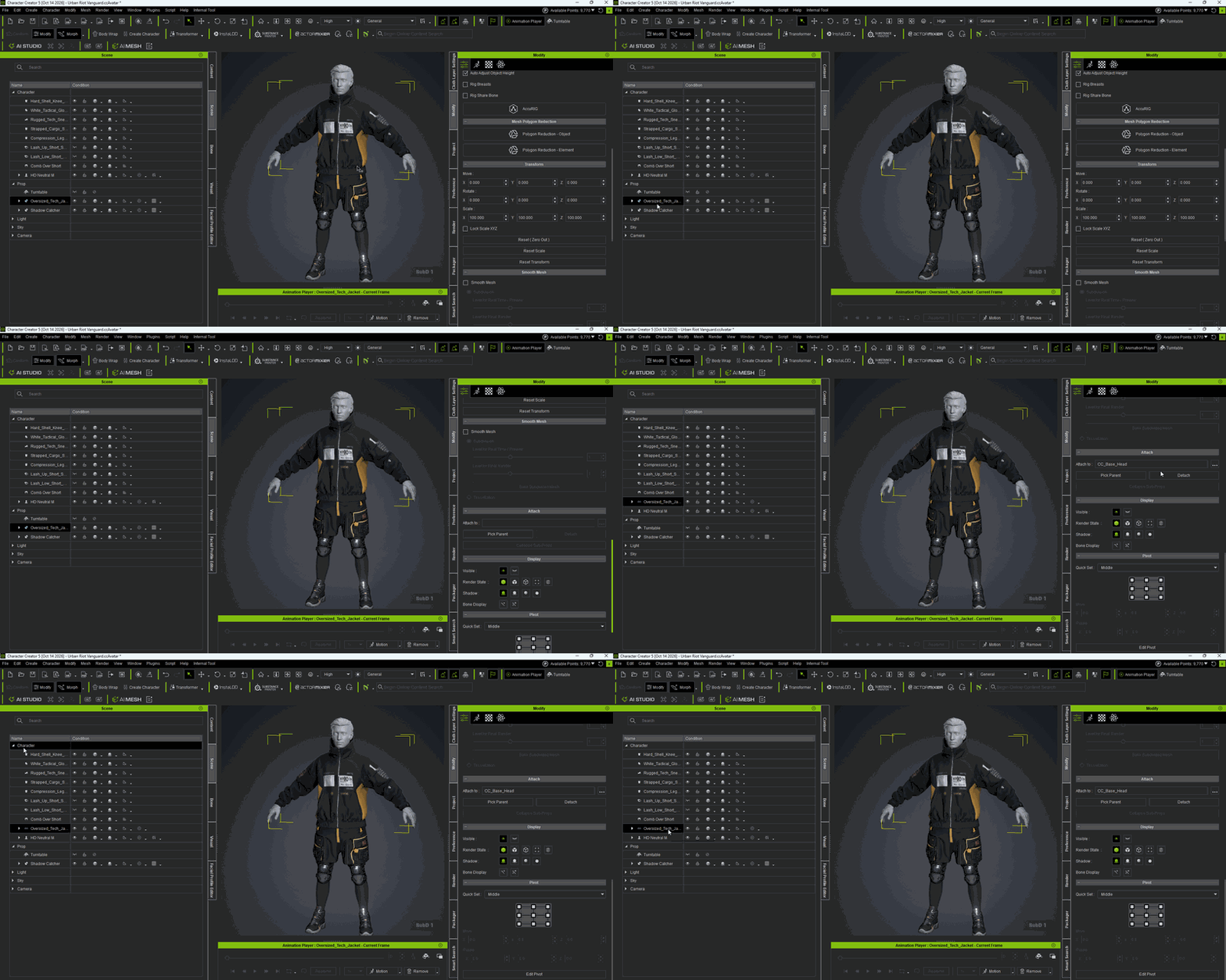
While the object is a Prop, Transfer Skin Weight is unavailable. Attach the object to the character to change it to an Accessory:
- Select the imported object.
- In the Modify panel on the right, go to Attach and click Pick Parent.
- Click a part of the character in the viewport to attach the object to a character bone.

Accessing Transfer Skin Weight
After attaching the object, check the Scene Manager. The object moves from the Prop category to under the character, and its attribute changes to Accessory.
Select the attached object again. The Transfer Skin Weight button is now available in the Modify panel.

Method 2: Importing as an Accessory
You can also import the OBJ file directly as an Accessory using Create > Accessory. This method makes Transfer Skin Weight available without manually attaching the object.
- Choose Create > Accessory from the menu bar.
- Select the OBJ file to import. CC places the model under the character in the Scene Manager and assigns it the Accessory attribute.
- Select the imported object. The Transfer Skin Weight button is available in the Modify panel.