Content Dev:IC Maya Motion to iClone (Advanced Skeleton 5)
- Main article: iClone.

Animators who want a more robust rigging system for creating iClone-compatible character animations in Maya might find the HumanIK system to be too sparse and lacking in critical feature sets. A more sophisticated rigging and animation system can be found with Advanced Skeleton 5: https://www.animationstudios.com.au/advanced-skeleton.
Process Introduction
Important Considerations
- Requires Maya 2024 and beyond.
- Character skeletons should not be haphazardly deformed: scaled or stretched.
- Skeleton bones should not be haphazardly renamed.
- Bones should not be added or removed from the character skeletons.
Simple Process Overview
- Launch Maya and install Advanced Skeleton 5. You'll need to perform a full install in order to access the controls window.
- Use the Create Reference method to bring a character into the scene.
- Adjust the motion on the pre-applied Advanced Skeleton controls.
- Bake the animation on to the Human IK character skeleton.
- Check and correct the character animation.
- Select the Human IK skeleton and export an FBX file.
- Load a character in iClone 8 and apply the exported FBX file.
- Ensure that the animation is the same as the one shown in Maya.
Provisional Files
You can download all of the provisional files in a zip file here.
What's included:
- Dummy_2025.mb: Maya binary file.
- Dummy_2025.iAvatar: iAvatar that can be used in iClone 8.
- Dummy_Tpose_2025.Fbx: This file will need to be loaded with the FBX motion in iClone 8.
Usage Instructions
1) Launch Maya.
2) Use Create Reference to import "Dummy_2025.mb" into the scene.

3) If the character is lying flat after import, go to Windows > Settings/Preferences > Preferences and adjust Settings > World Coordinate System > Up axis to "Y".

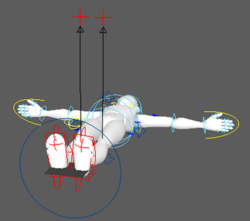
The dummy character lying flat upon import.
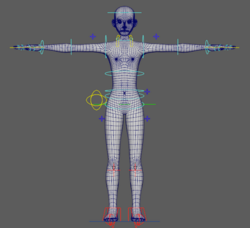
The dummy stands up after adjusting the World Coordinate System.


Using Advanced Skeleton 5
Installing Advanced Skeleton 5
Take all of the contents within the Advanced Skeleton 5 folder and put them under C:/Users/YOUR NAME/Documents/maya/scripts. Drag the install.mel file into Maya's viewport to install the plugin commands into the shelf.
Follow the video tutorial below to install Advanced Skeleton 5 into Maya:
Once properly installed, Advanced Skeleton shelf will be created.

IK/FK Switching
Click on the cross gizmo to the side of the character. In the Channel Box adjust the FIKIKBlend value. "0" is forward kinematic and "10" is inverse kinematic.

You can also launch the control panel from the shelf and click on a cross icon in the control panel diagram. Besides that, you can also right-click on a cross icon and perform Switch > FK2IK to mode switch. Keep in mind that a "switch" key will be set by doing this.

IK/FK Alignment
Switching between IK and FK mode is a frequent operation in the course of an animation. If the two systems are misaligned, then it'll become difficult to control. You can align FK to IK by opening the control panel and right-clicking on a cross icon to perform Align > FK2IK.

Finger Controls
Select the yellow control curves surrounding the hand palms or select the finger icons in the control panel to see the finger attributions in the Channel Box. These values can be multi-selected to open and close multiple fingers at once.

Foot Controls
Select any of the three red circles on the feet to bend from the heels, balls, or toes. In order to roll the feet, select the IK control curve and adjust the Channel Box > Rock: negative values roll the foot inward while positive values roll the foot outward.

The three aforementioned red circle controllers can also be selected near the bottom of the control panel.

Body Controls
The deep blue arrow curve controller moves and rotates the hips which can also drag the rest of the body with it. The three light-blue rings on the body control the spine, and can only be rotated, not moved. The yellow double curve controller only gyrates the hips and does not have an influence over the rest of the body.

The aforementioned controllers can also be selected in the control panel. By clicking on the spine button, one can select all of the light blue controls and adjust the entire spine at once.

Head and Shoulder Controls
Two light blue control curves are responsible for turning the head. One control is used to rotate the neck and the other for the head. Two lateral yellow control curves can be used to move and rotate the shoulders. Due to character limitations, iClone will only recognize shoulder rotations while shoulder translations are ignored.

Head and shoulder controllers can also be selected in the control panel.

Tip: Enable the curve option on its own to facilitate the selection and keying of the control curves.

Motion Production Precautions

- Framerate should be set to "60 fps" beforehand.
- Playback speed should be set to "60 fps x1" to make sure that the workspace frame rate matches that of the export frame rate.
- Make sure all keys are set on the controllers and not directly on the skeletal bones themselves.
- iClone does not support squash and stretch animation with bone joints. Not only are these effects ignored, but they can also cause some unexpected issues when exported to iClone.
- You are encouraged to use Maya's Graph Editor to ease in/out and massage the character animations.
File Export and Inspection
Baking the Motion onto the Skeleton
Bake the motion to the skeleton by switching to the Human Ik tab (A) and clicking on the blue button in the upper-left corner (B). Execute Bake > Bake To Skeleton with the default settings.

Exporting the FBX File
1) In the Outliner, click on the CC_Base_BoneRoot. Avoid selecting rig-related components (like control curves) and auxiliary bones.

2) Perform File > Export Selection and open Options to the right.
3) Click on the Edit presets... button and set FBX File Format > Version: to "FBX 2018" (2012 to 2018 are all compatible).

4) Once set, perform Export Selection.
Importing the FBX Motion into iClone
Launch iClone 8 and drag the provided DummyActor.iAvatar file onto the viewport. Drag the FBX file exported in the previous step onto the dummy character. In the subsequent window, set Motion Profile to "Current Character" and load the provided Tpose.fbx file into Motion T-Pose, then click on the Convert All button.

How to Import Multiple Animation Segments
1) Select multiple FBX animation files and drag them onto the character in iClone 8.
2) Select "Current Character" in Motion Profile.
3) Seleect the T-pose file in the file folder for Motion T-Pose.
4) Click on the Convert All button.

Keep in mind that the files will be saved directly into the Custom > Animation > Motion section of the Content Manager. The motions will need to be manually applied onto the characters.
Check if the Animations are Consistent
Check if the animation in iClone 8 looks like the animation in Maya. If the results are different, then contact technical support or use the contact window or PM for your Reallusion-related project for a quick response; You will need to provide the FBX and Maya file to help diagnose the issue.
File Submission
- Please provide the FBX and Maya file for inspection.
- Submit the files to your PIC at Reallusion and wait for feedback.
