Difference between revisions of "Content Dev:CTA Prop"
From Reallusion Wiki!
Chuck (RL) (Talk | contribs) m (→Things to Look Out for) |
Chuck (RL) (Talk | contribs) m (→Source Material Preparation) |
||
| Line 47: | Line 47: | ||
=== Source Material Preparation === | === Source Material Preparation === | ||
| + | |||
| + | ==== Common Static Props ==== | ||
| + | |||
| + | 1) Create a single image for static props and backdrops: static accessories, chairs, tables, etc. | ||
| + | 2) Copy and paste the image into Flash after it is complete in Illustrator. | ||
| + | :*Open Flash and select ActionScript 3.0 | ||
| + | :*Copy and paste the image from Illustrator (You don't need to adjust the canvas size) | ||
| + | |||
| + | {{Single_Illustration|CTA_Prop_001.JPG}} | ||
| + | |||
| + | 3) Export a SWF file with a capitalized English name. | ||
| + | |||
| + | {{Single_Illustration|CTA_Prop_002.JPG}} | ||
== Prop Creation Workflow == | == Prop Creation Workflow == | ||
Revision as of 23:09, 16 July 2017
- Main article: Reallusion Content Development.
- ! This page is incomplete because it's still under construction.
Before You Begin
Simple Workflow Steps
- Prepare the source material
- Make animations
- Save animations in the Action Menu
- Save the file
- Apply a thumbnail
Related Software & Tools
| Software | Version | Usage |
|---|---|---|
| Adobe Illustrator | CC above above | Primary drawing tool |
| Animate CC | Compose the art asset into SWF format | |
| CTA3 | 3.0 and above | Prop creation |
Provided Material
| File | Description & Usage | Notes |
|---|---|---|
| Dummy.png | Used as an alternative control element when creating motion enabled prop. | Used when motion is needed |
Source Material Creation
Things to Look Out for
- The overall style and color tones should be determined before each production.
- CTA does not support image blur and other special effects from Photoshop or Illustrator. However, it does support simple material transparency.
- As much as possible, use the Illustrator's Pathfinder or the Shape Builder Tool to merge the shapes of identical colors, so that problems don't arise when a Render Style is applied to the prop.
- Once the prop is drawn, convert all paths to shapes. For example, via Illustrator's Object > Path > Outline Stroke function.
- Once the image for the prop is complete, make sure the naming convention for it along with its parts are correct.
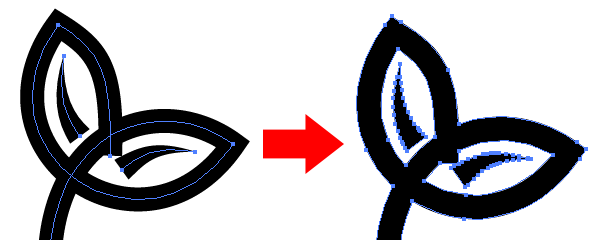 Illustrator can turn line strokes to vector shapes.
Source Material Preparation
Common Static Props
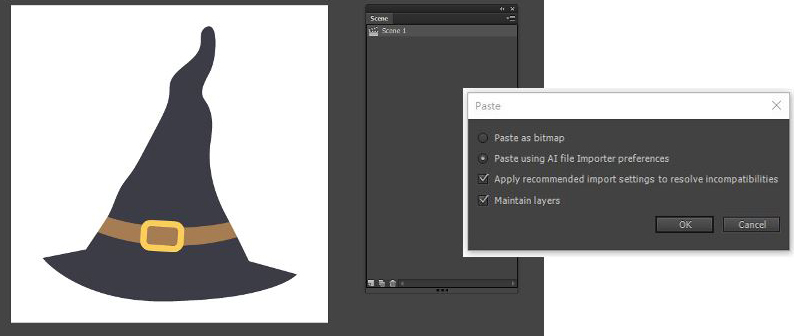
1) Create a single image for static props and backdrops: static accessories, chairs, tables, etc. 2) Copy and paste the image into Flash after it is complete in Illustrator.
- Open Flash and select ActionScript 3.0
- Copy and paste the image from Illustrator (You don't need to adjust the canvas size)
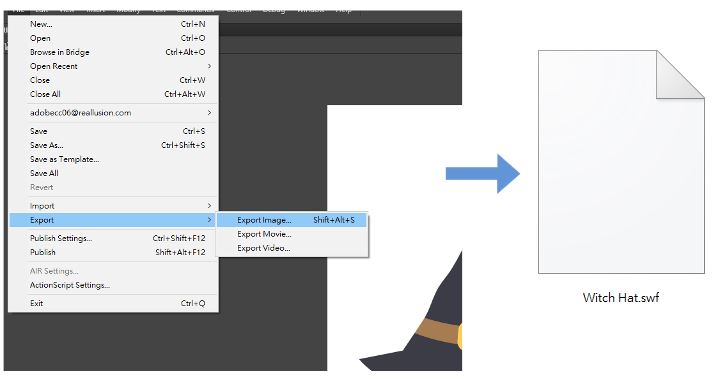
3) Export a SWF file with a capitalized English name.